
Transport Licenses
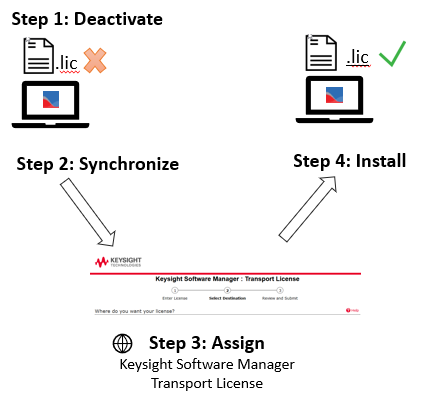
If a license is transportable, you can transport (move) it to a different host. The process to transport licenses is as follows:
Before you start, make sure you have the host ID of the machine you want to move the licenses to (the destination machine). See Which host ID should I use for my license files?
Step 1: Deactivate: First, you'll deactivate the license on the host where it now resides. After deactivation, the license can no longer be used on that host.
-
- On the machine you want to move the licenses from (the source machine), start PathWave Desktop Edition, click
 , then click Licenses and Support.
 - Select License Status, then Local Licenses.
- Ensure that the licenses you want to transport are transportable by checking whether the Type column for those licenses says transportable. If your licenses are not transportable, you will need to contact Keysight for assistance.
- Click Transport Licenses.
- In the Transport Licenses dialog box, select the license(s) you want to transport.
- Click Deactivate Now.
- On the machine you want to move the licenses from (the source machine), start PathWave Desktop Edition, click
Once you have deactivated the license, it is no longer available for use on the source machine. You must synchronize, assign, and install the license on the destination machine before you can use it again.
Step 2: Synchronize: Next, you'll connect to the Keysight Software Manager (KSM) website, using information provided to you in the confirmation dialog box when you have deactivated. This notifies KSM that the license has been deactivated, so that KSM can update its information on available entitlements.
-
- If you are connected to the internet, the confirmation of deactivation will include a link to the Keysight Software Manager: Transport License website. Click this link to open a browser, synchronize with KSM, and see the next steps.
- If you are not connected to the internet, you will receive reactivation codes, which must be uploaded to the KSM website:
- Save your reactivation confirmation codes to a file by clicking Save Your Reactivation Codes and choosing a file.
- Copy that file to a machine that has internet access.
- On the machine that has internet access, open the file and click the link to connect to the KSM website.
Step 3: Assign: In KSM, you'll request a new copy of the license (a new license file) locked to the new host, where you want to use the license.
-
- Follow the steps on the KSM website to request a new license file using the host ID of the machine you want to move the licenses to (the destination machine).
- You will receive the new license file from KSM via email. Save the license file to a location on the destination machine.
Step 4: Install: You'll receive the new license by email and install it on the new host.
-
- On the machine you want to move the licenses to (the destination machine), start PathWave Desktop Edition, click , then click Licenses and Support.
- Choose Add License > Add a License File.
- Click Browse, browse to the license file on your machine, and click Open.
You can repeat this to select any number of license files to install. - Click Install License File.
- On the machine you want to move the licenses to (the destination machine), start PathWave Desktop Edition, click
Search key: FAQ_TRANSPORT