
Install Packages
Test Automation Package Manager lets you search for, download, and install package files.
To download and install packages:
-
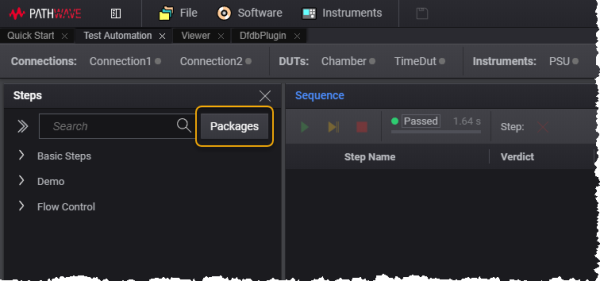
Open Package Manager by clicking the Packages button in the Test Step pane.
-
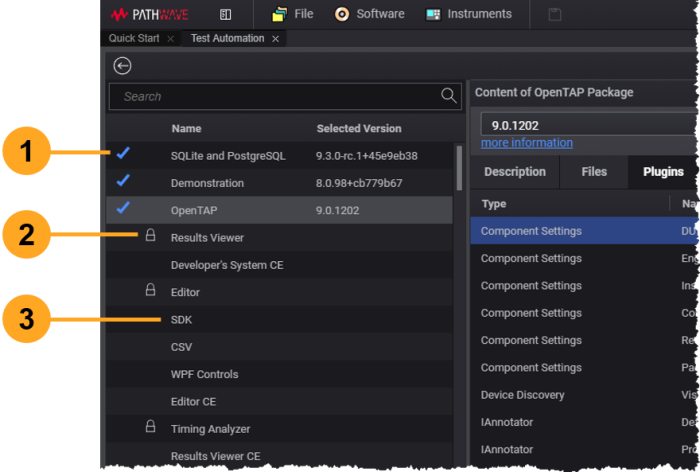
Package Manager identifies the status of all packages:
- Blue check marks identify installed packages (1)
- An exclamation point indicates a newer version is available for installation
- Lock icons identify packages that requires a license:
- Closed lock = license is NOT installed (2)
- Open lock = license is installed
- Unchecked packages are available but not installed (3)
-
Locate the package you want to install. You can search for packages in the Search field at the top of list of packages. This searches for packages in your Test Automation folder and in a configured package repository (if available).
-
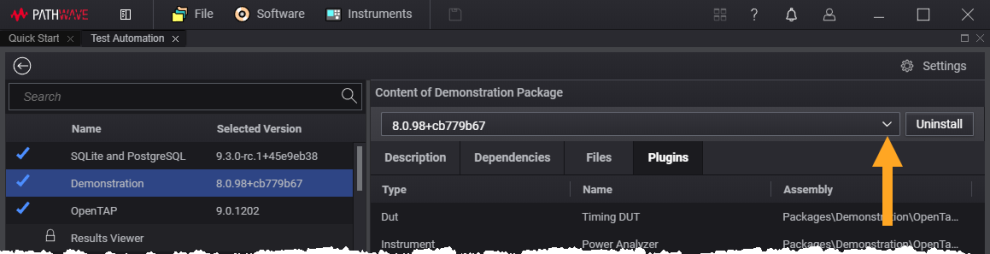
Select the package and click Install. If the package is in your repository, Test Automation installs the newest version by default. To install an older version, use the version drop-down menu to select one:
If a license is required, follow your company's procedure to obtain and install the license.
Uninstalling Packages
To uninstall a package, select it and click Uninstall. Note that this removes the package from use by Test Automation but does not delete it from your system.