
Create a Test Plan
The following steps walk you through the process of creating a test plan, modifying step settings, running the plan, and setting it to repeat. This is a basic procedure for users who are unfamiliar with the application.
-
Open Test Automation.
-
Load the appropriate packages that contain the desired test steps.
-
Add a step to the test plan:
-
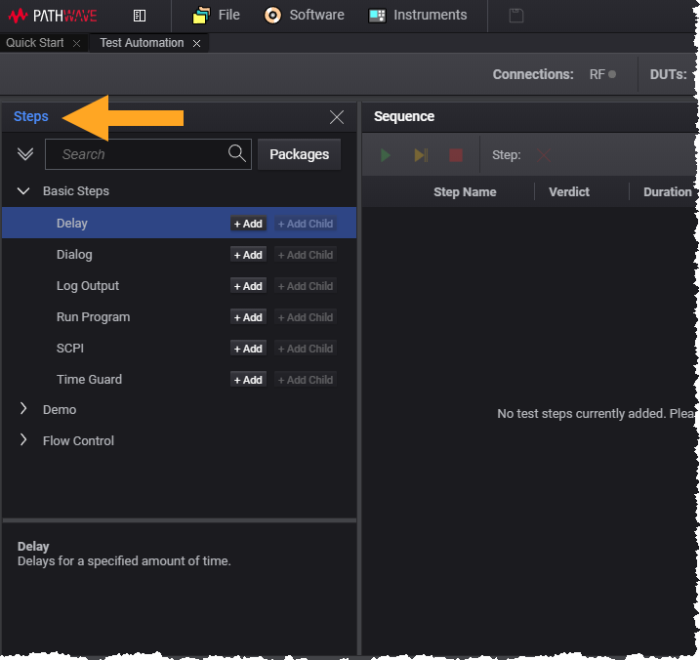
For example, from the Steps dialog (which lists available test steps in expandable groups) expand the Basic Steps group.
-
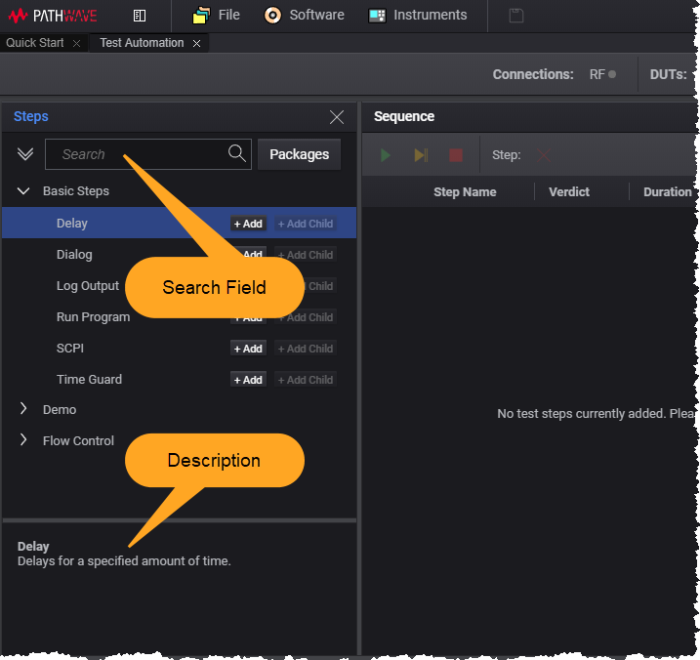
Select the Delay step and notice that:
- A blue bar identifies the selected step
- A short description of the step is shown below the steps
-
Click the Add button next to the step you want to add to the test plan (in the example, next to Delay).
You can also add a step by double-clicking it or dragging it to the test plan.
-
-
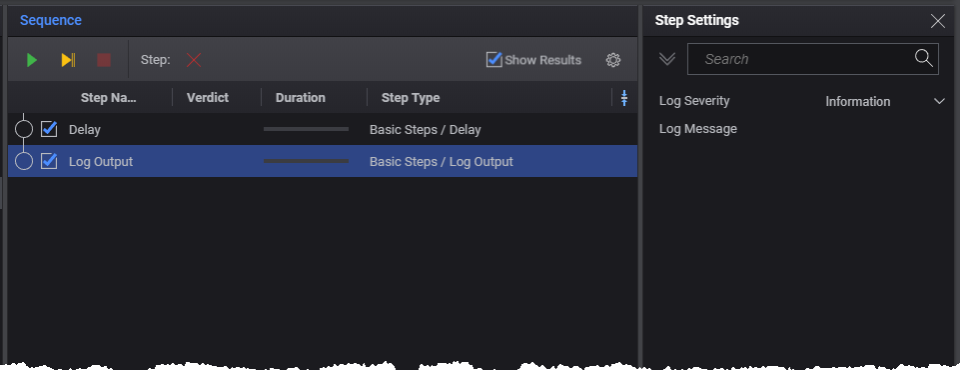
Add another step. Drag the Log Output step to the test plan, then close the Steps dialog box. Your test plan should look like this:
-
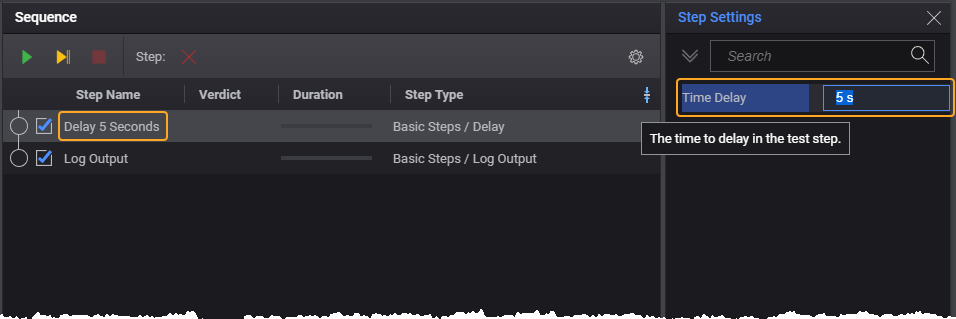
Select the Delay step:
- Notice the delay settings open in the Step Settings pane. Change the Time Delay to 5.0 seconds.
- Double-click the Delay step name and rename the step to "Delay 5 Seconds"
-
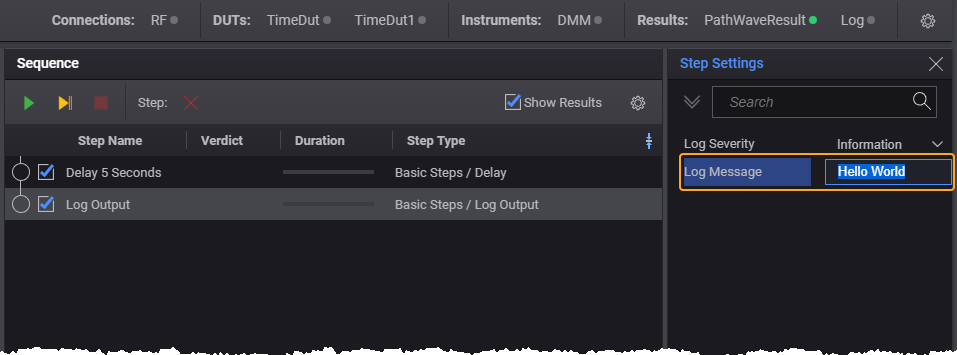
Select the Log Output step and enter "Hello World" in the Log Message field:
-
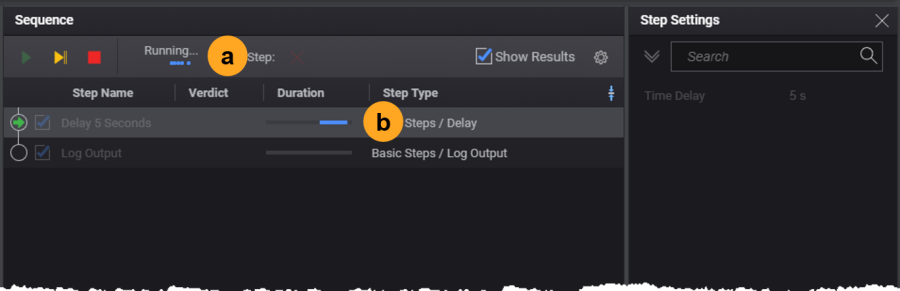
Click Run or press F5 to run the test plan. Notice that the test plan indicates:
- The time remaining to complete the test step (a)
- The duration of the step thus far (b)
-
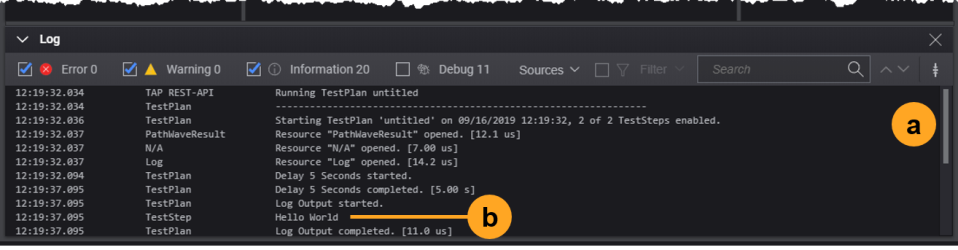
The Log pane shows the log messages. Use the scroll bars to view all of the messages (a). Notice the "Hello World" message from the Log Message step (b).
-
To save the test plan to the PathWave Desktop Edition internal file system, see Save a Test Plan.
To save the current test plan to a specific file location on your computer, type Ctrl+S, navigate to the desired location, and enter a file name with a .TapPlan extension.
Next Steps
The PathWave Desktop Edition Viewer service is launched after a successful test plan run to provide a visual representation of the test plan results. See View Results for more information on viewing, filtering, and exporting test plan results.