
License Status
This view displays the PathWave licenses installed on your local machine and on your configured remote license server(s).
To find the License Status view, click  , then click Licenses and Support, then License Status.
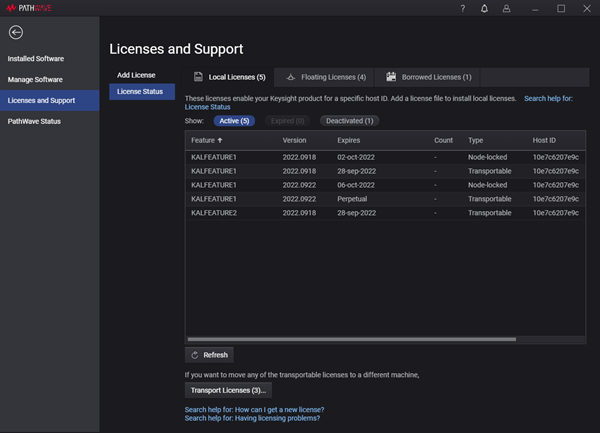
There are two or three tabs on this view, depending on your licenses. (The Borrowed Licenses tab appears only if there are borrowed licenses on this host.) See What are the types of licenses? for more information about each type.
- Local Licenses: This tab shows node-locked, transportable, and USB portable licenses.
- Floating Licenses: This tab shows floating licenses on all license servers that are configured for the selected product(s).
- Borrowed Licenses: This tab shows licenses that are currently borrowed by this machine.
Depending on the license location and type, the information shown may include:
- Feature: The name of the licensed feature of the selected product.
- Version: The version of the license. Your product may include documentation of the license versions required for your product version.
- Expires: The expiration date of the license. If this column displays perpetual, this is a perpetual (permanent) license, which will never expire.
- Count: The number of license counts for this feature. For example, if there are 10 counts, then 10 users can run the licensed feature at the same time.
- Type: The type of license (node-locked, USB portable, transportable, etc.). See What are the types of licenses?
- Server: The server on which floating licenses are installed.
- Host ID: The host ID to which node-locked and USB portable licenses are locked.
- Scheduled Return Date: The date on which the borrowed license will automatically be returned, if you do not return it before that date.
You can sort the licenses based on a particular column (such as Feature) by clicking that column's header.
You can choose which licenses to see by clicking Active, Expired, and/or Deactivated. By default, only active licenses are shown.
- Expired licenses have passed their expiration date. You must renew them to use them.
- Deactivated licenses have been transported to a different machine. See What is the process for transporting a license to a different host?
If you don't see the licenses you expect:
- Are you looking at the wrong tab of the License Status view? Select Locked Licenses, Floating Licenses, or Borrowed Licenses, depending on the type of license you are looking for. (You may not see all these tabs: the Borrowed Licenses tab is shown only if you have borrowed licenses.)
- Have you specified your license server? See Specify a Remote License Server.
- Have you installed your licenses? See How do I get a license file? and Add a License File.
- Have your licenses expired or been transported to a different machine? In the License Status view, select Expired or Deactivated to see those licenses.
- Have your borrowed licenses been automatically returned? In the Borrowed Licenses tab, select (check) the box labeled Show Automatically Returned to see these licenses.
- Do you have licenses that must be viewed in a different tool, such as Keysight License Manager 5? To open Keysight License Manager 5:
- In the Windows Start menu or Search box, search for Keysight License Manager. (It may be listed either as Keysight License Manager with no version number, or as Keysight License Manager 5.) Click to open.
- If you do not have Keysight License Manager 5 installed, you can get it from http://www.keysight.com/find/licensemanager.
Available Actions
Refresh
Refreshes the view to ensure that you are seeing current data.
Transport Licenses
This button on the Local Licenses tab opens a dialog box where you can transport (move) a transportable license from one machine to another.
Borrow Licenses
This button on the Floating Licenses tab opens a dialog box where you can borrow a floating license for an extended period of time and use it without a connection to the network license server. You must be connected to the network to initiate the borrow.
Return Borrowed Licenses Early
This button on the Borrowed Licenses tab opens a dialog box where you can return a borrowed license. You must be connected to the network to return a license.
See Also
- What is a local license?
- What is a transportable license?
- What is the process for transporting a license to a different host?
- What is a served license?
- What is a borrowed license?
- What is the difference between a floating license and a borrowed license?
Search key: LICENSES